
How to Send Dividend Vouchers to Xero from Dividify (2026 Step-by-Step Guide)
In this article14 sections
- Why Connect Dividify to Xero
- What Actually Gets Sent to Xero
- Before You Start
- Step 1 — Connect Xero to Dividify
- Step 2 — Map Your Company to a Xero Organisation
- Step 3 — Pick Your Debit and Credit Accounts
- Step 4 — Create a Dividend in Dividify
- Step 5 — Click "Send to Xero" from the Success Screen
- Step 6 — What Appears in Xero
- The PDF Voucher Attachment
- How Multi-Company and Accountant Workflows Work
- Re-syncing, Draft Mode and Failed Posts
- Troubleshooting
- FAQs
If you're a UK company director or accountant who runs payroll and dividends through Dividify but keeps the books in Xero, this guide is for you. We walk through the full Dividify → Xero integration — from connecting your Xero organisation to posting a dividend journal with the signed PDF voucher attached — so your bookkeeping stays in sync without any double entry.
Why Connect Dividify to Xero
Most UK contractors and small-company directors already use Xero for day-to-day bookkeeping. The problem is that Xero on its own doesn't help you prepare a dividend properly — it has no concept of distributable profits, no voucher generator, and no board minutes. So directors typically end up doing the same dividend three times: once in a spreadsheet, once in Word for the voucher, and again as a manual journal in Xero.
Dividify removes that duplication. You declare the dividend once, generate the compliant voucher and board minutes, and then push a clean manual journal straight into Xero — with the PDF voucher attached for your audit trail.
What Actually Gets Sent to Xero
When you click Send to Xero in Dividify, three things happen:
- A Manual Journal is created in your mapped Xero organisation with two lines — a debit to your dividend/drawings account and a credit to your DLA/bank/accruals account.
- The signed PDF dividend voucher is uploaded to that journal's Attachments tab.
- Dividify writes a sync record back to your dashboard so you can see the Xero journal ID, click "Open in Xero", or re-sync if needed.
The journal can be posted as Draft (for your accountant to review) or Posted straight away — your choice, configured per-company.
Before You Start
You'll need:
- A Xero organisation you're admin of (or have permission to create manual journals in).
- A Dividify plan that includes Xero integration — Pro, Enterprise or Accountant.
- Your chart of accounts ready in Xero. Most directors use account 980 - Owner A Drawings or 3260 - Dividends Paid for the debit side, and either 805 - Accruals, DLA (Director's Loan Account) or the bank account for the credit side.
Step 1 — Connect Xero to Dividify
- From your Dividify dashboard, go to Settings → Integrations → Xero.
- Click Connect Xero. You'll be redirected to Xero's standard OAuth consent screen.
- Choose which Xero organisation you want to authorise. If you're an accountant with access to dozens of client orgs, Xero will list them all — pick the one you want to link, or repeat the flow once per client.
- Approve the requested scopes and you'll land back on Dividify's Xero settings page with the connection listed as Active.
You can connect multiple Xero organisations to a single Dividify account. Each gets its own row on the Integrations page, with a status pill (Active / Reconnect / Disconnected) and a Disconnect button.
Step 2 — Map Your Company to a Xero Organisation
This is the bit most people don't realise matters: Dividify links Xero to the Dividify company, not to your user account. That mapping is what tells the system "when I post a dividend for Company A, send it to this Xero org".
On the Xero settings page, for each Dividify company you'll see a dropdown of every Xero organisation you've connected. Pick the matching one and save. Do this once per company.
Step 3 — Pick Your Debit and Credit Accounts
Once a company is mapped, Dividify loads the full chart of accounts from Xero so you can pick:
- Dividend account (debit) — usually an equity/drawings account such as 980 - Owner A Drawings or a P&L account like 3260 - Dividends Paid. This is where the declared dividend is recognised.
- Credit account — either the Director's Loan Account (DLA) if the dividend hasn't been physically paid yet, the bank account if you paid it on the same day, or 805 - Accruals for unpaid amounts at period-end.
- Post as Draft toggle — when on, journals land in Xero's Draft state and need a human to approve them. Most accountants prefer this for client work. When off, journals are posted immediately.
Save and you're ready to start posting.
Step 4 — Create a Dividend in Dividify
This part is unchanged from the normal Dividify flow:
- Pick the company, shareholders, payment date and amount per share.
- Dividify calculates totals per shareholder, generates the compliant voucher PDF (Companies Act 2006 layout) and the board minutes documenting the resolution.
- Hit Generate — the PDFs are saved to your Documents tab and counted against your monthly usage allowance.
Step 5 — Click "Send to Xero" from the Success Screen
As soon as the voucher is generated, the success modal pops up with everything you need to act on:
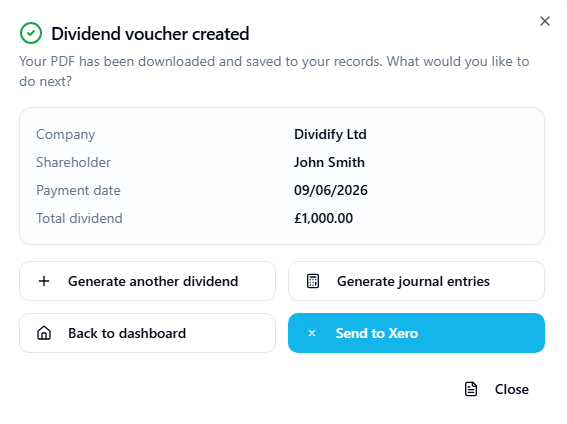
The modal summarises the dividend (company, shareholder, payment date, total) and offers four next steps: Generate another dividend, Generate journal entries (a manual export of debits/credits if you'd rather post by hand), Back to dashboard, and the headline action — Send to Xero.
Click Send to Xero and Dividify will:
- Look up which Xero org the company is mapped to.
- Build a ManualJournal payload with the right narration, date and lines.
- POST it to Xero using a short-lived access token (refreshed automatically — you don't need to re-authorise every 30 minutes).
- Upload the voucher PDF to the journal's Attachments endpoint.
- Update the row on your Dividify dashboard with a "Posted to Xero" / "Draft in Xero" pill plus a deep link to the journal.
The whole round-trip usually completes in 2–3 seconds.
Step 6 — What Appears in Xero
Open Xero, go to Accounting → Manual Journals, and you'll see your new entry. Here's what it looks like:
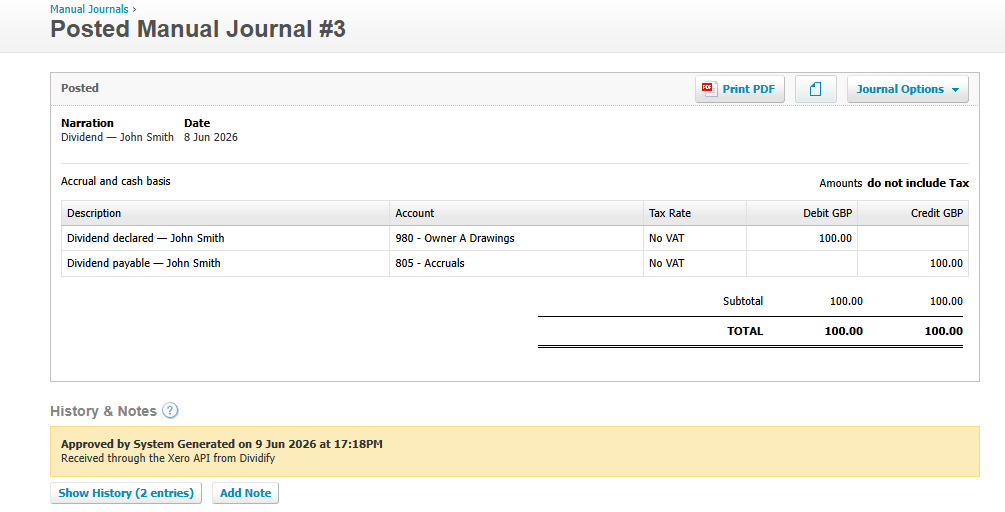
A few things worth pointing out:
- Narration is "Dividend — {shareholder name}" so it's obvious at a glance what the journal is for.
- Date matches the dividend's payment date (in the screenshot: 8 Jun 2026), not the date you clicked Send.
- Debit line posts to your chosen dividend/drawings account (here: 980 - Owner A Drawings) with the description "Dividend declared — {shareholder}".
- Credit line posts to your chosen counter account (here: 805 - Accruals) with the description "Dividend payable — {shareholder}".
- Tax Rate is automatically set to No VAT — dividends are outside the scope of VAT.
- History & Notes records "Approved by System Generated" and "Received through the Xero API from Dividify" so any reviewer can see exactly where the journal came from.
That's a textbook dividend posting — the same entries a bookkeeper would make by hand, but generated in seconds and tied back to the source document.
The PDF Voucher Attachment
This is the part that saves you the most time at year-end. Open the journal in Xero, click the paperclip / Attachments icon, and the signed PDF dividend voucher is right there — already named after the voucher number and shareholder, ready for your accountant or HMRC if they ever ask.
This means your bookkeeping in Xero now contains both the double-entry record AND the statutory document that backs it up, in one place. No more "where's the voucher for that £5,000 dividend in March?" emails the night before a deadline.
How Multi-Company and Accountant Workflows Work
This is the question we get most often from accountants: "I act for 30 clients on Xero. If I generate a dividend for Client B but I was last looking at Client A's Xero settings, how does Dividify know where to send it?"
The answer is the per-company mapping from Step 2. Dividify never matches by name, never uses the "currently selected" Xero org, and never asks Xero to guess. When you click Send to Xero on a dividend, the routing is strictly: Dividend record → Dividify company → that company's Xero mapping → the specific Xero organisation → Manual Journal POST.
So if Client B's company is mapped to Client B's Xero org, the journal can only land in Client B's books — even if you're staring at Client A's dashboard in another tab. Switching companies in the Dividify dashboard sidebar has zero effect on where the journal goes; the mapping is the source of truth.
Re-syncing, Draft Mode and Failed Posts
Three real-world scenarios that the integration handles cleanly:
- Re-sync. If you edit a dividend after posting (rare, but it happens) you can click Re-sync next to the "Posted to Xero" pill. Dividify deletes the old journal and posts a fresh one so Xero always reflects the current voucher.
- Draft mode. With Post as Draft enabled, journals land in Xero's Draft state with a yellow "Draft in Xero" pill in Dividify. Your accountant reviews and clicks Approve in Xero — the next time Dividify syncs status, the pill flips to green "Posted to Xero".
- Failed posts. If Xero rejects the journal (e.g. account code archived, organisation locked period), Dividify shows a red Xero sync failed badge with a Retry button. The full error from Xero is logged for support.
Troubleshooting
A few common gotchas:
- "Xero not set up for this company" — you haven't completed Step 2/3. Click the Set up link to open the mapping page.
- "Reconnect Xero" — Xero's refresh token expired (usually because nobody used the integration for 60+ days). Click Reconnect and re-authorise — your mapping and account choices are preserved.
- "Finish Xero account mapping" — you've connected a Xero org and mapped it to the company, but haven't chosen the debit/credit account codes yet.
- "Plan not allowed" — you're on Starter. Upgrade to Pro, Enterprise or Accountant.
- Wrong account showed up on the journal — change the account in Settings → Integrations → Xero, then click Re-sync on the affected dividend.
FAQs
- Does Dividify post to Xero automatically when I generate a dividend?
No. Posting is always a deliberate click on Send to Xero from the success screen (or from the dividend's row on your dashboard). This keeps you in control — if a dividend is a draft, an error, or just being tested, it never touches your books.
- Will the PDF voucher really attach to the Xero journal?
Yes — Dividify uses Xero's Attachments endpoint to upload the signed PDF straight to the Manual Journal. You'll see it under the paperclip icon in Xero. If the attachment ever fails (e.g. very large file), the journal still posts and Dividify flags it so you can re-sync.
- Can I send dividends to QuickBooks, Sage or FreeAgent instead?
Not yet. Xero is our first accounting integration. QuickBooks Online and FreeAgent are on the 2026 roadmap — let us know which you'd prioritise via the feedback widget in your dashboard.
- Which Xero accounts should I use for dividends?
The most common setup for a small owner-managed company is debit 980 - Owner A Drawings (or 3260 - Dividends Paid) and credit either the Director's Loan Account (if the dividend wasn't physically paid same-day) or the bank account (if it was). Speak to your accountant if you're unsure — Dividify doesn't dictate the accounts, you pick from your own chart of accounts.
- Will it post the same dividend twice if I click Send to Xero again?
No. Once a dividend has been successfully posted, the button is replaced with a "Posted to Xero" pill and a Re-sync option. Re-syncing deletes the old journal in Xero and posts a fresh one — you never end up with duplicates.
- Does it work with multiple Xero organisations?
Yes. You can connect as many Xero orgs as you like, and each Dividify company maps to exactly one Xero org. This is exactly how accountants on the Accountant plan handle 20–50 clients without journals leaking across books.
- Can I undo a dividend after it's been posted to Xero?
Yes — delete or void the Manual Journal in Xero (or in Draft mode, just discard it). On the Dividify side, deleting the dividend record will also clear the sync status.
- Is Xero integration available on the Starter plan?
No. It's bundled with the Pro (£12/mo), Enterprise, and Accountant plans. You can upgrade at any time from your profile page.
Try Dividify with Xero today
Stop double-entering dividends. Generate the voucher, click Send to Xero, get on with your day. Create your free Dividify account — Pro plan includes Xero integration and a 14-day trial. Already a customer? Head to Settings → Integrations → Xero to connect your first organisation.